
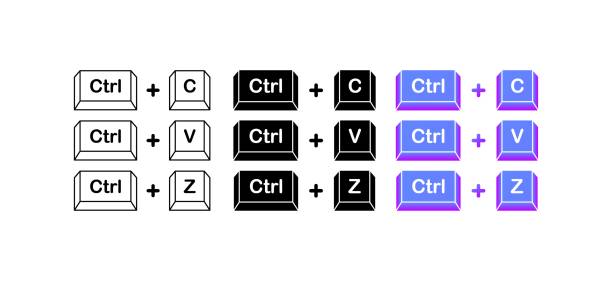
Short keys boost productivity by letting you perform tasks faster. Common Windows shortcuts include:
In This Article
Ctrl + P – Print
On macOS, use Command (⌘) instead of Ctrl (e.g., ⌘ + C to copy). These keys help you navigate, edit, and manage files quickly without relying on a mouse.
Ctrl + C – Copy
Ctrl + V – Paste
Ctrl + Z – Undo
Alt + Tab – Switch between open apps
Ctrl + S – Save
Why Learn Short Keys?
- Time Savings: Reduce repetitive mouse actions and complete tasks faster.
- Increased Productivity: Streamline your workflow and focus on what matters most.
- Ergonomic Benefits: Minimize strain from excessive mouse use.
- Enhanced Efficiency: Navigate and control applications with precision.
Mastering the Essentials: Short Keys Tables
Let’s dive into the core short keys you need to know, organized for easy reference.
1. General Windows Short Keys
| Short Key | Function |
|---|---|
| CTRL + A | Select All |
| CTRL + C | Copy |
| CTRL + X | Cut |
| CTRL + V | Paste |
| CTRL + Z | Undo |
| CTRL + B | Bold |
| CTRL + U | Underline |
| CTRL + I | Italic |
| F1 | Help |
| F2 | Rename selected object |
| F5 | Refresh current window |
| ALT + TAB | Cycles between open applications |
| ALT + F4 | Quit program, close current window |
| CTRL + ESC | Opens Start menu |
| CTRL + ALT + DEL | Opens task manager, reboots the computer |
| SHIFT + DELETE | Full wipe delete (bypasses Recycle Bin) |
| WINKEY + D | Bring desktop to the top of other windows |
| WINKEY + E | Open Microsoft Explorer |
| WINKEY + L | Lock the computer (Windows XP & later) |
2. Microsoft Word Short Keys
| Short Key | Function |
|---|---|
| CTRL + A | Select all contents of the page |
| CTRL + B | Bold highlighted selection |
| CTRL + C | Copy selected text |
| CTRL + X | Cut selected text |
| CTRL + N | Open new/blank document |
| CTRL + O | Open options |
| CTRL + P | Open the print window |
| CTRL + F | Open find box |
| CTRL + I | Italicize highlighted selection |
| CTRL + U | Underline highlighted selection |
| CTRL + V | Paste |
| CTRL + Y | Redo the last action performed |
| CTRL + Z | Undo last action |
| CTRL + G/H | Find and replace options |
| CTRL + J | Justify paragraph alignment |
| CTRL + L | Align selected text or line to the left |
3. Microsoft Outlook Short Keys
| Short Key | Function |
|---|---|
| ALT + S | Send the email |
| CTRL + C | Copy selected text |
| CTRL + X | Cut selected text |
| CTRL + P | Open print dialog box |
| CTRL + K | Complete name/email typed in address bar |
| CTRL + B | Bold highlighted selection |
| CTRL + I | Italicize highlighted selection |
| CTRL + U | Underline highlighted selection |
| CTRL + R | Reply to an email |
| CTRL + F | Forward an email |
| CTRL + N | Create a new email |
| CTRL + SHIFT CTRL + SHIFT + O | Open the outbox |
| CTRL + SHIFT + I | Open the inbox |
4. Document Cursor Control Short Keys
| Short Key | Function |
|---|---|
| HOME | to beginning of line or far left of field or screen |
| END | to end of line, or far right of field or screen |
| CTRL + HOME | to the top |
| CTRL + END | to the bottom |
| PAGE UP | moves document or dialog box up one page |
| PAGE DOWN | moves document or dialog down one page |
| ARROW KEYS | move focus in documents, dialogs, etc. |
| CTRL + > | next word |
| CTRL + SHIFT + > | selects word |
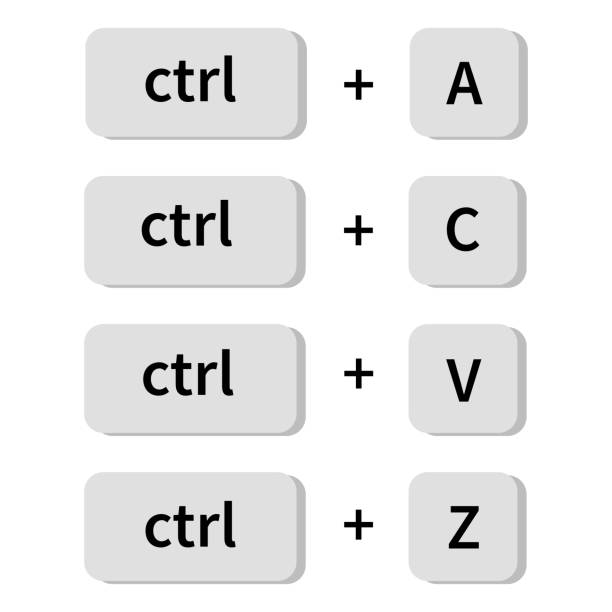
Tips for Mastering Short Keys
- Start Small: Focus on learning a few essential short keys at a time.
- Practice Regularly: Incorporate short keys into your daily tasks.
- Create Cheat Sheets: Keep a list of your most frequently used short keys handy.
- Use Sticky Notes: Place reminders on your monitor.
- Explore Application Menus: Many applications display short keys next to menu options.
Conclusion
By mastering these keys, you’ll significantly enhance your productivity and efficiency. Make it a habit to use them, and you’ll soon wonder how you ever worked without them.
Remember, practice makes perfect. Start today, and unlock your potential!

This Post Has One Comment
Pingback: Google Sheets Shortcuts - Digitallguide